
Every night it was the same fight. Same argument. Same result. If you know that feeling, keep reading — this one is for you.
The short version: stop being the enforcer and let the tech do it. A router with parental controls, a reward-based app, and one honest family conversation. That is the whole system. This is how effective family screen time management actually works — and why it mostly works without turning you into the bad guy. The rest of this article is how we actually set it up.
I Was the Screen Time Cop — and Everyone in the House Hated It
I remember standing in the kitchen doorway at 8:47 PM on a Tuesday. My son was 10. He had school the next day. He had been on his tablet for three hours.
I said “time’s up.” He lost it. Full meltdown. Screaming that I was ruining his life. My daughter, who was already in bed, woke up from the noise. My wife gave me the look. You know the one. It means you handle this.
I took the tablet. He cried. I went to the living room and sat there staring at the wall. I felt like the worst dad in the neighborhood.
That was not a bad night. That was every night.
I was checking the clock. Reminding kids. Arguing. Caving. Then feeling guilty for caving. It was exhausting. I was the rule. And everyone in the house resented me for it.
Why “Just Take the Phone Away” Never Actually Works
Here is the thing nobody tells you. Rules without systems always fail.
Kids are smart. The second you cut the Wi-Fi, they find another way. A friend’s hotspot. A downloaded game. A YouTube video they cached earlier.
There is a reason the r/daddit thread “Screen time limits don’t work for kids!!!” is still getting comments years later. We all feel this. It is not just you.
Research backs it up too. About 60% of parents say their screen time rules backfire. The result? Sneaky behavior. More arguing. Less trust.
Taking the phone away makes you the enemy. What works is making the limit automatic — and making your kid part of the process.
The Three-Layer System for Screen Time Management Without Conflict
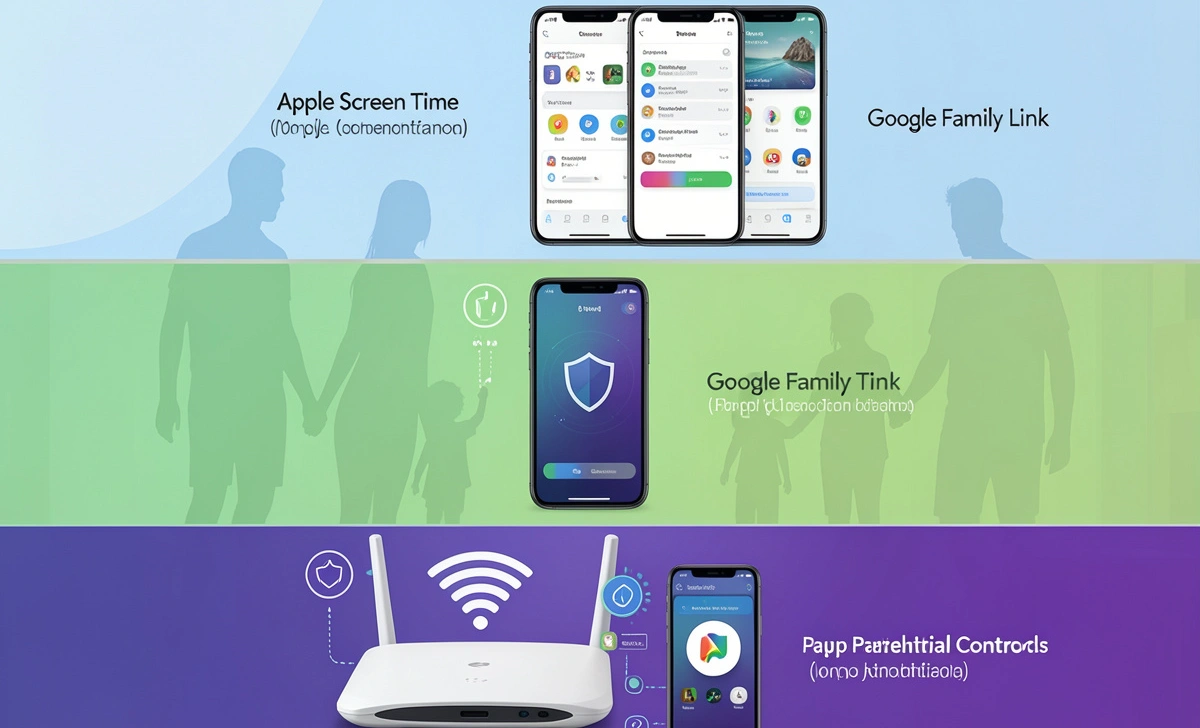
This is where things actually got better in our house. We built a three-layer system. Eachlayer does one job. Together, they mostly run themselves.
Layer 1: The Router
This is your foundation. A router with parental controls manages every device on your home Wi-Fi. Phones, tablets, gaming consoles, smart TVs — all of it.
We use the Gryphon AX. It costs between $150 and $300. Worth every dollar. You set bedtimes for each kid’s devices right from the app. At 9 PM, our son’s tablet stops working. No argument with me. The Wi-Fi went to sleep. That is it.
If you are not ready to replace your whole router, check out our smart home for beginners guide first. It explains how home networking works without making your head hurt.
Circle Home Plus is another option. It plugs into your existing router and works the same way. Good pick if you want to keep your current setup.
Layer 2: The App
The router handles the home network. But kids take devices places — school, grandma’s house, a friend’s car. That is where an app comes in.
Bark is the one we use. It monitors content and sends alerts if something looks off. It is not invasive. Your kid still has privacy. But you know if something serious happens.
For younger kids — ages 6 to 11 — try ScreenCoach or Kids360 instead. These apps have a built-in reward system. More on that in a bit.
Layer 3: Apple Screen Time and Google Family Link
These are free. Already built into your kid’s phone or tablet. Use them as the base layer.
Set daily app limits. Lock the phone after a certain hour. Require your approval before a new app gets downloaded. Family Link works on Android. Screen Time works on iPhones and iPads. Even if you add other tools later, these cost nothing and take 20 minutes to set up.
How to Set Up Family Link on Android and iPhone (the Non-Techy Dad Version)
A lot of dads search for this and get buried in tech articles. Here is the plain version.
For Android — Google Family Link:
- Download the Family Link app on your phone.
- Open it and follow the setup steps. It walks you through linking your child’s Google account.
- Once linked, set daily screen time limits, approve app downloads, and see what apps they use.
- You can also lock the device remotely from your phone at any time.
For iPhone and iPad — Apple Screen Time:
- Go to Settings on your child’s device.
- Tap Screen Time, then tap “This is My Child’s iPhone.”
- Create a Screen Time passcode. Not your regular one — a separate code.
- Set app limits, downtime hours, and communication limits.
- On your own iPhone, go to Settings, then Screen Time, then Family Sharing to manage everything from your phone.
That is it. Takes about 20 minutes. You do it once.
Quick Wins: 5 Screen Time Rules That Do Not Start a War
Dads are busy. Here is the short list of things that actually helped in our house.
- Dinner table Wi-Fi pause. Use your router app to pause internet on the kids’ devices during dinner. You say nothing. It just stops working at the table.
- Bedtime auto-shutoff. Set the router to cut access at 9 PM. Automatic. Zero enforcement needed from you.
- Earned screen time on weekends. Chores done means screen time unlocked. The next section covers the apps that make this work.
- Hold one family meeting. Before the system goes live, sit everyone down. Explain the new rules together. Kids push back less when they feel included.
- Say “the Wi-Fi decides” — not “I decided.” This one reframe changed everything. You are not the bad guy. You are just the dad who set up the system.
The Reward Flip: Apps That Make Kids Want to Earn Their Screen Time
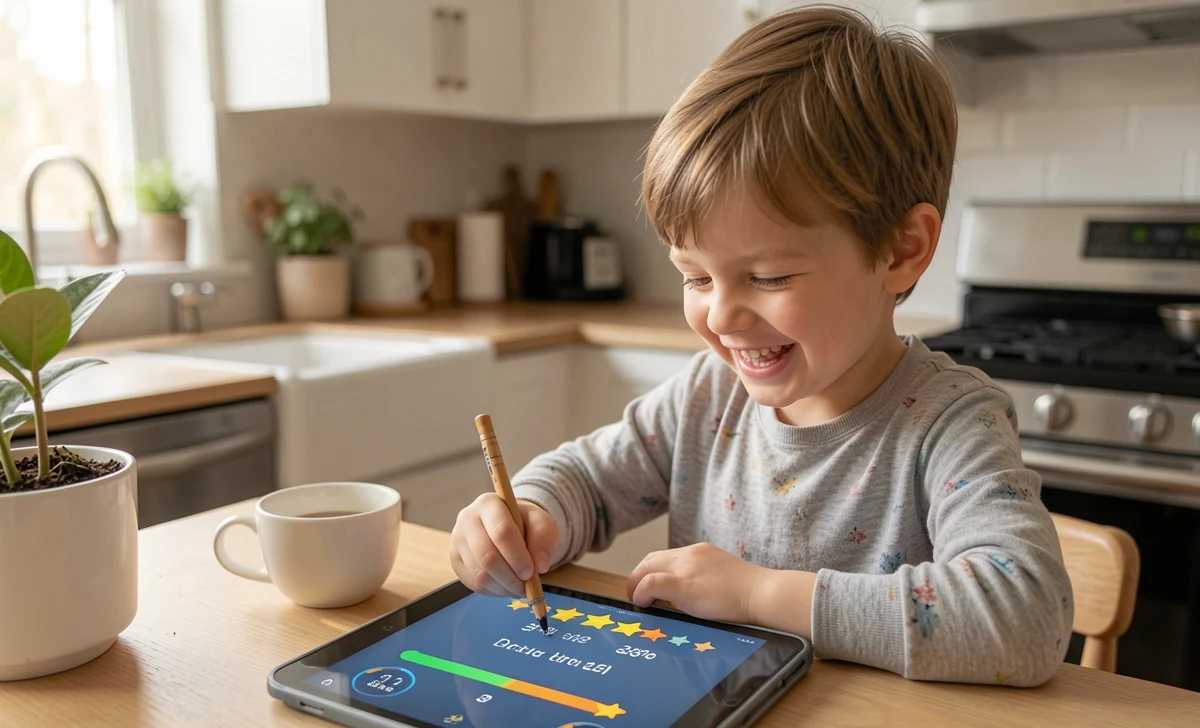
This is what most screen time articles miss completely. And it is the biggest shift we made.
Instead of taking screens away, we made screens something to earn. That changes the whole dynamic.
ScreenCoach is the best example. Kids complete tasks — chores, homework, going outside — and earn screen time tokens. When tokens run out, apps lock automatically. No negotiation. No argument with Dad. The app is the rule.
Kids360 works the same way. You create tasks. Your kid completes them. They get extra time as a reward.
ScreenTreat is newer. Parents set tasks that must be done before screen time unlocks. Kid finishes the task, phone opens up.
Here is why this works. Your kid stops fighting the limit. They start working toward it.
One morning my son woke up early to finish his chores before his friends came over. Just so he would have tokens saved up. I did not ask him to. The app motivated him.
The One Conversation You Have Before You Turn the System On
Before you flip the switch on any of these tools, sit down with your kids. Keep it short. Keep it calm. Do not make it a lecture.
Here is roughly what we said:
“Hey, we are making some changes to how screens work in our house. The Wi-Fi is going to have a bedtime — just like you do. On weekends, you can earn extra time by finishing your chores. The app handles all of it. I am not going to be checking on you constantly. The system does that.”
The key word is “the system.” Not “I decided.” The Wi-Fi sleeps. The app tracks the time. You are just the dad who set it up.
Our son still tested it the first week. He tried staying up past his tablet’s bedtime. It did not work. He complained — but he complained at the router, not at me.
If you are renting and worried about setting up a router without drilling anything, our guide to smart home devices for renters covers exactly how to do it without touching a single wall.
Is It Perfect? No. Is It Better Than Before? Way Better.
I am not going to tell you this fixed everything. Our 13-year-old still finds workarounds sometimes. There are still nights someone complains.
But the nightly war? Mostly over. I am not standing in the kitchen doorway at 8:47 PM playing bad cop anymore. The system does that job now.
Some weeks it hums along great. Other weeks you tweak something and move on. That is real parenting.
If you are starting from scratch, here is my honest advice. Begin with Apple Screen Time or Family Link — it is free and takes 20 minutes. Then add a reward-based app like ScreenCoach. If you want to go all in, grab a Gryphon or Circle router and lock down the whole network.
And hey — if you are already setting up tech around the house, you might want to grab a solid baby monitor too. Same idea: good tech in the background means fewer problems at night. We tested five of them so you do not have to.

